Projects
A project is an outcome that needs more than one list — a move, a launch, a book. It bundles several Reminders lists with a folder of its own, a plan, and tools to think it through: mindmaps, pinboards, sketches and files.
What a project holds
Section titled “What a project holds”- An outcome: what does done look like?
- A status: Active, On Hold, Someday or Done.
- An optional area and the lists that belong to it.
- A folder Projects/‹Name› in your iCloud Drive with plan.md, the project’s plan, next to its mindmaps, pinboards and files.
Create a project
Section titled “Create a project”- Choose New › New Project.
- Enter a Title, the Outcome and, if you like, an Area.
- Choose Create.
iKanban creates the folder with plan.md and opens the project’s Overview.
Find your way around
Section titled “Find your way around”In the sidebar, tap Projects. Without an open project, the sidebar lists your projects, with New Project at the end, and the content shows them as tiles grouped by status. An orange warning marks an active project that has no open card — it has no next action.
Once you open a project, the sidebar shows its tree:
- Overview, Planning and Lists — the project’s views.
- Lists & Cards — each list; expand it to see its open cards.
- Pinboards, Sketches, Journals, Mindmaps and Files.
All Projects takes you back. On Mac: it’s in the folded project list above the tree. On iPad and iPhone: it’s in the first section, which carries the project’s name. The project name in the content header is a menu, too: pick another project there.
Overview
Section titled “Overview”The Overview shows everything the project holds as tiles: the Outcome and each plan.md section under Natural Planning, Lists & Cards with up to four open cards per list, and previews of mindmaps, pinboards, sketches, journals and files. Tap a tile to open it; choose Edit on a plan section to change it right there.
Natural planning in plan.md
Section titled “Natural planning in plan.md”plan.md holds the project’s planning notes in six sections: Purpose & Principles, Outcome Vision, Goals, Brainstorm, Organize and Next Actions. Existing text remains editable in Overview; open the whole file under Files. Section editors switch between List, with colored, movable items, and Markdown. Brainstorm notes are separate text; the mindmap and outline share their own set of ideas.
Planning
Section titled “Planning”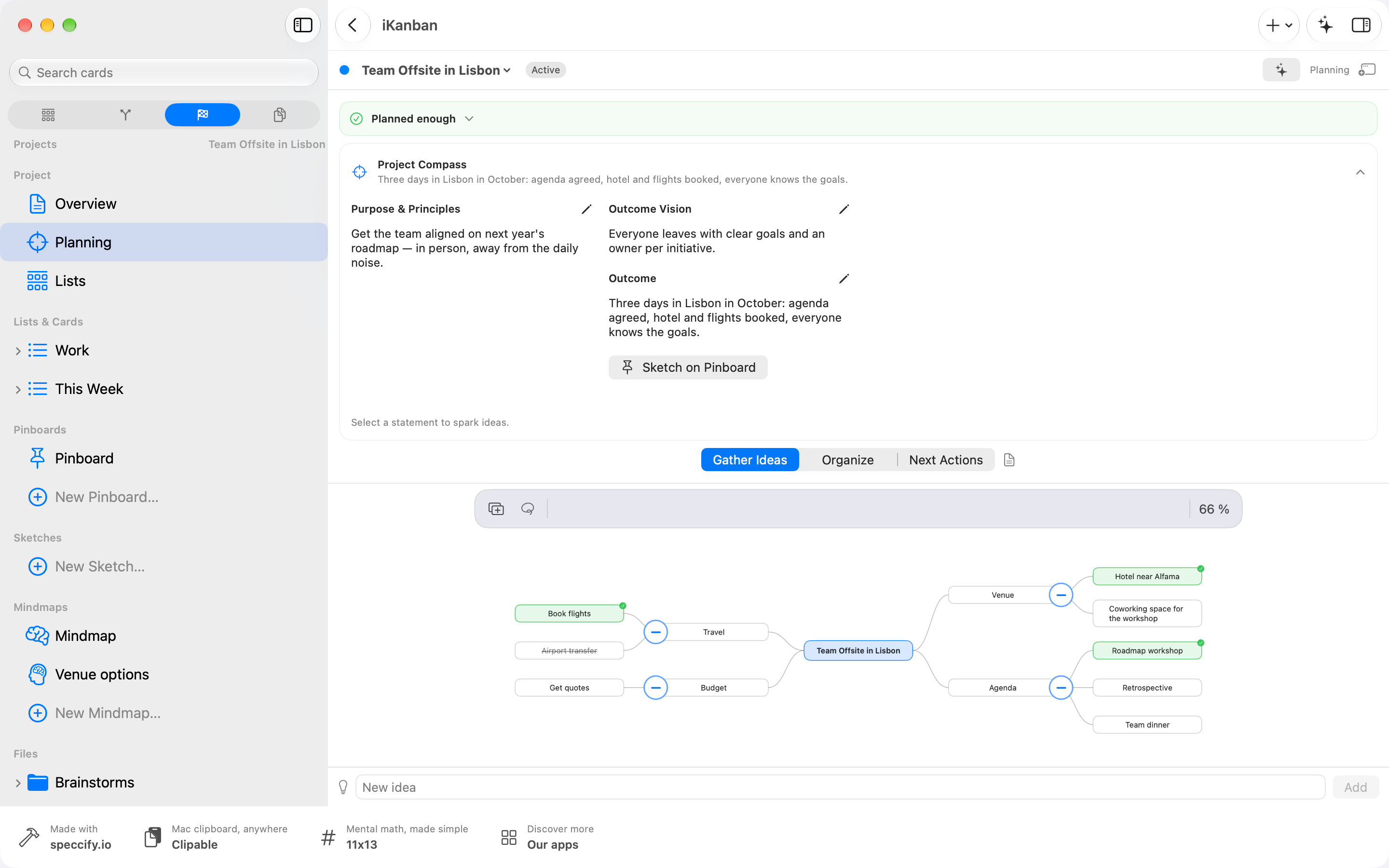
Planning combines a collapsible Project Compass with three working modes. Switch freely whenever you need to; there is no required sequence.
The compass holds Purpose & Principles for the why and the standards. Outcome Vision pictures success; Outcome states how you will know the project is done. A short summary stays visible when collapsed. Expand the compass and use a section’s pencil to edit it. Sketch on Pinboard opens the “Vision” pinboard. Selecting a statement gives you a prompt for further ideas.
- Gather Ideas: Use the mindmap to explore possibilities and questions.
- Organize: The same ideas appear as an outline. Milestones edits the existing Goals.
- Next Actions: The board shows this project’s lists and cards.
Planning Notes opens the existing text section for the current mode. Organize notes complement the outline; they do not automatically become ideas or cards.
Stuck? The planning check
Section titled “Stuck? The planning check”Overview and Planning show a compact planning check with a recommendation and a direct jump to the relevant working area. Tap the check title or chevron to expand its explanation, evidence and Stuck? menu. The check considers the outcome, plan sections, ideas, lists and open cards. For more clarity, return to the compass; for more movement, gather ideas, organize them or define a next action.
Stuck? lets you say it yourself: pick where you’re stuck under I need more clarity at… or I need more to be happening at…, and you get the matching advice with a Go to button.
The project’s lists
Section titled “The project’s lists”Lists shows the project’s board. The picker at the top switches between All Lists and a single list; the list menu next to it offers New List… and Add Existing List.
Edit the project
Section titled “Edit the project”With the Overview or Planning open, the inspector shows the project: Title, Status, Area, Outcome, and a switch per list to assign it. Choose Save to apply. Set On Hold or Someday to park a project — the planning check then stops asking for a next action. The inspector also shows plan.md and has Mark Reviewed for your Weekly Review.
On Mac: right-click a project in the sidebar’s project list for Show in Finder or Delete Project. Deleting removes the project from iKanban; its lists stay in Reminders and its folder stays in iCloud Drive.
For brainstorming, see Mindmaps and Outline.