The Workspace
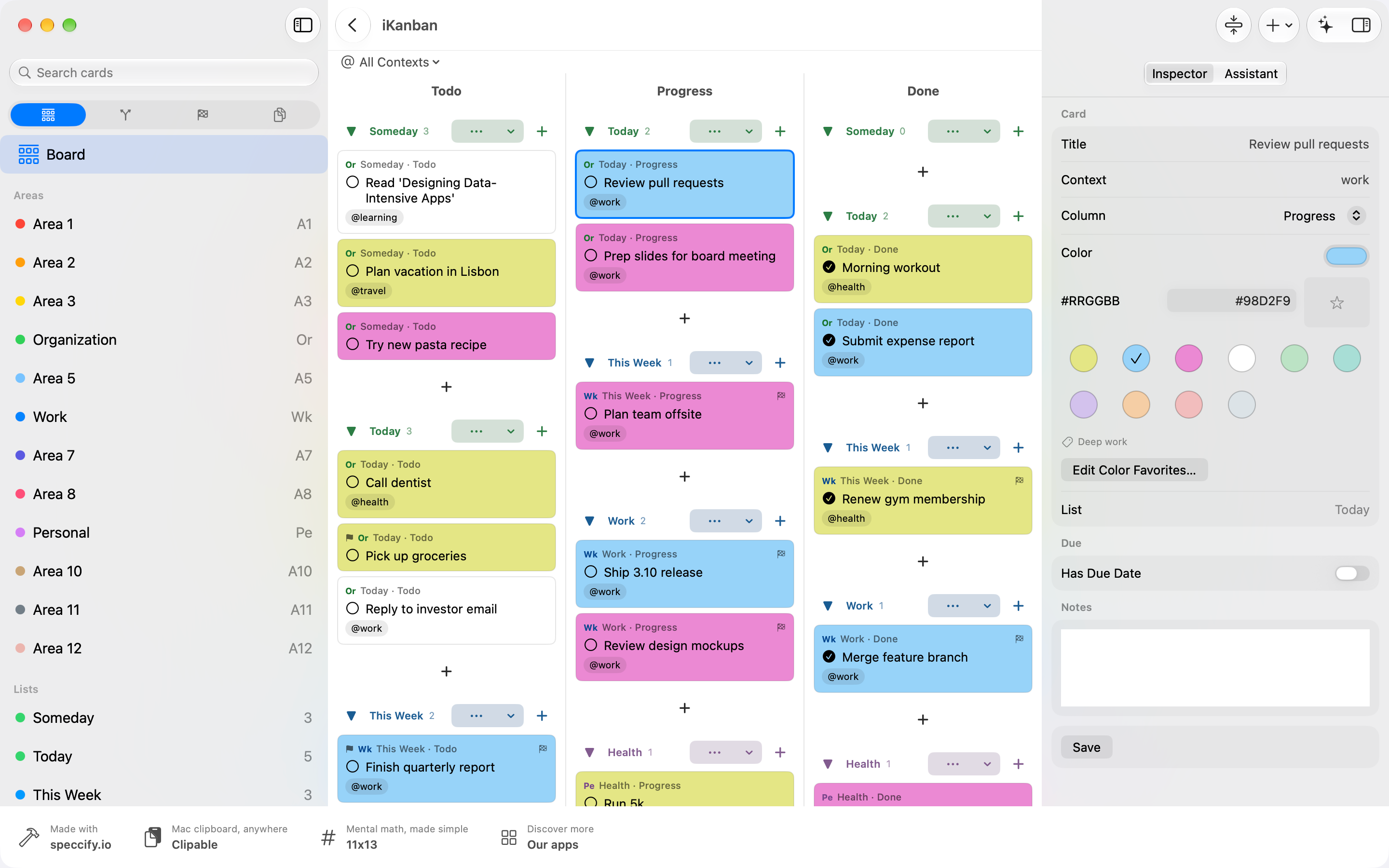
iKanban has one workspace on Mac, iPad and iPhone, built from three parts. The sidebar on the left says where you are, the content in the middle shows what is there, and the inspector on the right shows the details of what you selected.
The sidebar
Section titled “The sidebar”At the top of the sidebar sits a fixed row of four area symbols: Kanban, Workflow, Projects and Documents. It stays in place while you scroll. Below it are the rows of the chosen area:
- Kanban: Board (all lists), your Areas, your Lists, and Archive once you have archived a list.
- Workflow: Inbox, Today, Weekly Review, Waiting For, Someday/Maybe, then Contexts and Colors.
- Projects: without a project, your projects and New Project. With a project open, its tree: Overview, Planning and Lists, then Lists & Cards, Pinboards, Sketches, Journals, Mindmaps and Files. All Projects takes you back to the list of projects.
- Documents: All Documents and the folders of the iKanban folder in your iCloud Drive.
The one rule to remember: a tap in the sidebar changes the content and the inspector, never the sidebar. The row you are looking at is highlighted. The sidebar itself only changes when you pick another area at the top, open a project or choose All Projects. Jumps into other areas start from the content, and Back always takes you back.
On Mac the window title shows where you are, for example Kanban › Board.
Search, Settings and Help
Section titled “Search, Settings and Help”The search field Search cards sits at the top of the sidebar. It filters the cards on the board as you type. Where the content shows no cards, press Return to jump to the Board with your search; Back returns you. On iPhone Return also brings you to the content.
Settings: On iPad and iPhone tap the gear at the top of the sidebar. On Mac choose iKanban › Settings (⌘,).
Help: On iPad and iPhone tap the question mark next to the gear, or open Settings › Help. On Mac choose Help › iKanban Help (⌘?). The help has a search field of its own.
The header
Section titled “The header”On the left of the content’s header: the sidebar button (iPad and iPhone) and Back (⌘[). Back returns to the previous place, step by step.
On the right:
- New (plus) is the same menu everywhere, but its first entry fits the place: New Page in a journal (iPad), New Sketch… in a sketch, New Pinboard… on a pinboard, New Mindmap… in a mindmap, New List in Planning, and New Card everywhere else. Below follow New Card (⌘N), New List (⌘⇧N), New Project and, inside a project, New Pinboard…, New Sketch…, New Journal… (iPad only) and New Mindmap….
- The assistant: On Mac and iPhone the sparkles button opens it. On iPad it sits in the lower part of the right column.
- The inspector: On Mac and iPad the Inspector button shows or hides the right column. On iPhone the Details button (i) opens the inspector as a sheet.
The inspector
Section titled “The inspector”The inspector follows your selection: a card, a list, an area, a context, a color, a document. With nothing selected it shows the current view itself, with its counts and settings. For the Board that means the GTD roles and display options.
- On Mac: a right column. At its top you switch between Inspector and Assistant.
- On iPad: a right column split in two. The upper part is the inspector, with one page per section: tap a tab at the top or swipe. Below it is the assistant. Tapping a card opens the column if it was closed, and iKanban remembers whether you keep it open. Save for a card sits at the top right, above the column.
- On iPad in portrait: there is no room for the sidebar and the right column at the same time, so they take turns. Opening the inspector hides the sidebar; the sidebar button brings the sidebar back and closes the inspector.
- On iPhone: the sidebar and the content take turns on the screen. Tap a row to see its content; the sidebar button takes you back. Tapping a card opens the Details sheet; Close closes it. An iPad in a narrow Split View window works the same way.